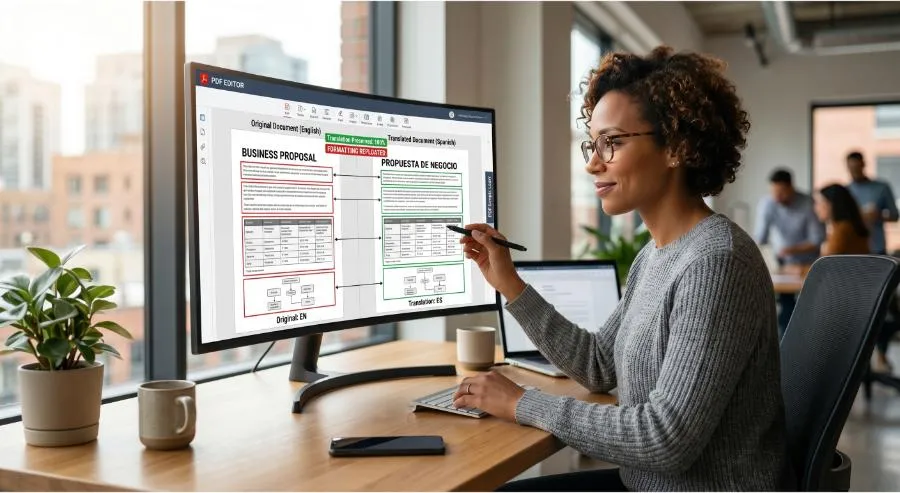
Translation is half the battle. The other half is making sure your translated document still looks like a document — not a jumbled mess of misaligned paragraphs, broken tables, and overflow text.
If you’ve ever received a translated PDF where the layout had completely fallen apart — columns shifted, headers duplicated, images displaced — you’ve experienced the formatting problem firsthand. It happens when translation is treated as a text-only task instead of a document task.
PDFSimpli’s Document Translator handles both: accurate text translation and layout preservation, so the document that comes out the other side is both linguistically correct and professionally presentable.
Why Formatting Breaks During Translation
The root cause is text expansion and contraction. Different languages occupy different amounts of horizontal space for equivalent meaning:
- German text is typically 20–30% longer than English
- Chinese and Japanese use significantly fewer characters for the same content
- Arabic and Hebrew read right-to-left, requiring full layout mirroring
- Languages like Thai have no spaces between words, changing line-breaking logic entirely
A translation engine that simply substitutes words without accounting for these spatial differences will break any tightly formatted document — tables, callouts, sidebars, headers, and multi-column layouts are all vulnerable.
How PDFSimpli Preserves Your Document Layout
- Layout-aware translation: The translation engine analyzes document structure before translating text, identifying fixed-layout containers, text boxes, tables, and columns.
- Dynamic text fitting: Translated text is automatically scaled or reformatted to fit the original container dimensions without overflowing or truncating.
- Style inheritance: Font, size, color, alignment, and spacing attributes from the original document are preserved in the translated version.
- Image and graphic retention: Images, logos, charts, and non-text elements remain in their original positions regardless of how surrounding text expands or contracts.
- Right-to-left support: Full document mirroring for Arabic, Hebrew, Urdu, and other RTL languages — including navigation elements, page layout, and reading order.
Document Types That Benefit Most
- Legal and compliance documents: Contractual layout matters — clause numbering, section references, and signature blocks must remain intact
- Technical manuals: Diagrams paired with numbered instructions require precise spatial relationship preservation
- Marketing brochures: Brand-critical layouts with precise image-text relationships
- Fillable forms: Form fields must maintain their relationship to labels in translation
- Slide decks: Translated presentations require text to remain within designated content areas
Tips for Maximum Layout Fidelity
- Use high-fidelity source files: A well-structured source document translates more cleanly than a poorly formatted one
- Avoid hard-coded text in images: Text embedded in image files can’t be translated or repositioned — use text layers instead
- Leave design margins: Documents with generous padding handle text expansion more gracefully
- Review in the target language: Have a native reviewer check not just translation accuracy but visual presentation
- Use PDFSimpli’s translation preview: Review the formatted output before finalizing to catch any layout anomalies
Languages Supported
PDFSimpli’s Document Translator supports 50+ languages including Spanish, French, German, Portuguese, Italian, Dutch, Russian, Chinese (Simplified and Traditional), Japanese, Korean, Arabic, Hindi, and many more.
Getting Started
- Open PDFSimpli’s Document Translator
- Upload your PDF, Word, or other document
- Select source language (or use auto-detect) and target language
- Review the translation preview — check both text accuracy and layout
- Download the translated, formatted document
Final Thoughts
Translation without layout preservation isn’t a finished product — it’s a draft. PDFSimpli’s Document Translator delivers both, so translated documents look as professional as the originals and are ready to use without post-translation design work.
Translate your documents without losing your layout. Try PDFSimpli’s Document Translator →