PDFSimpli Chrome Extension: Help Guide

PDFSimpli Chrome Extension: Help Guide

Clear, step-by-step instructions for using our products, featured tools and services

INSTALL EXTENSION
How to use our Extension
How to pin the PDFSimpli Chrome Extension

1. Open Google Chrome.

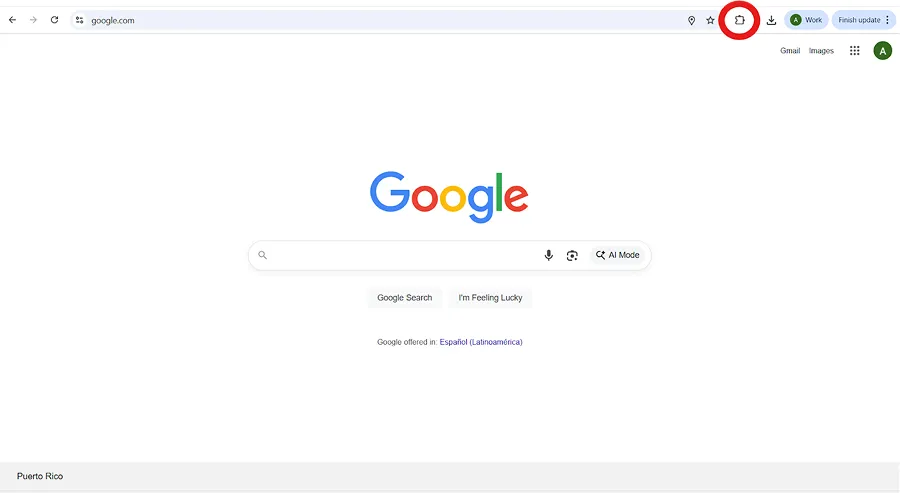
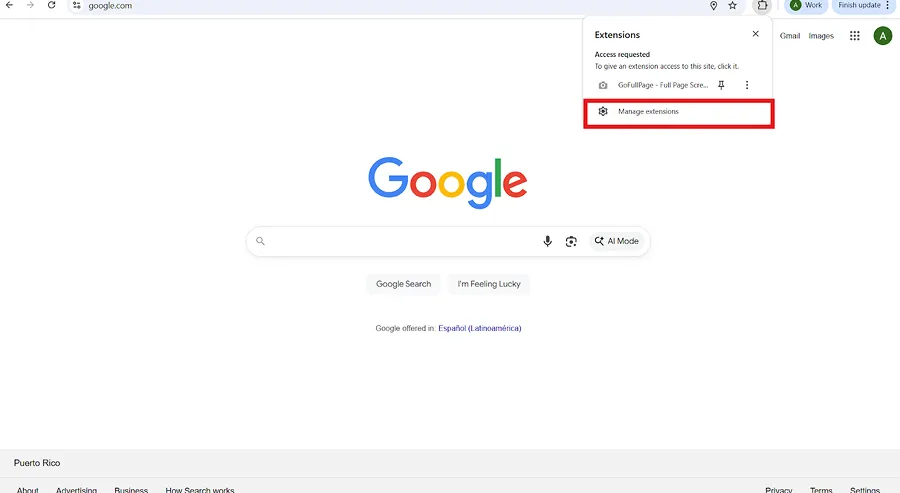
2. In the top-right corner of the browser, click on the Extensions icon to access the extension menu
Step Image 2

3. Find the PDFSimpli extension in the list and click the “Pin” icon for quick access as you use Chrome
Step Image 3

How to use the PDFSimpli Chrome Extension
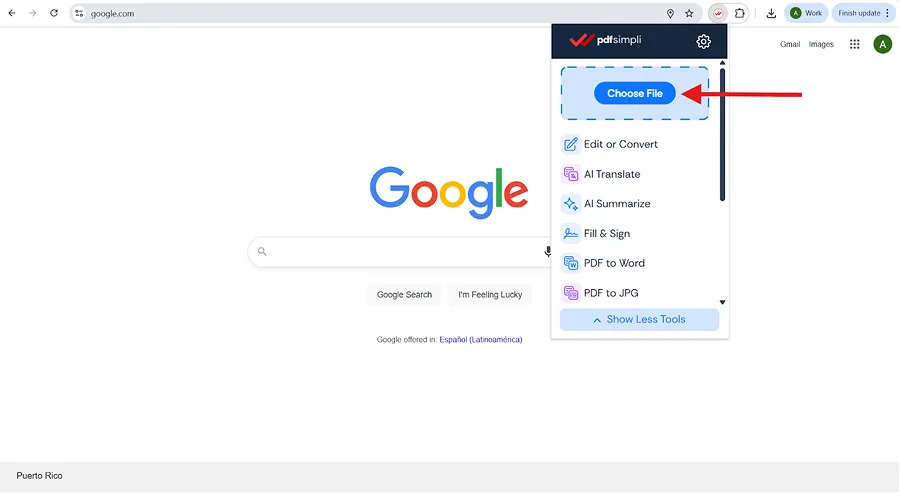
1. Click the pinned PDFSimpli icon in the tool bar to open the extension
Step Image 1

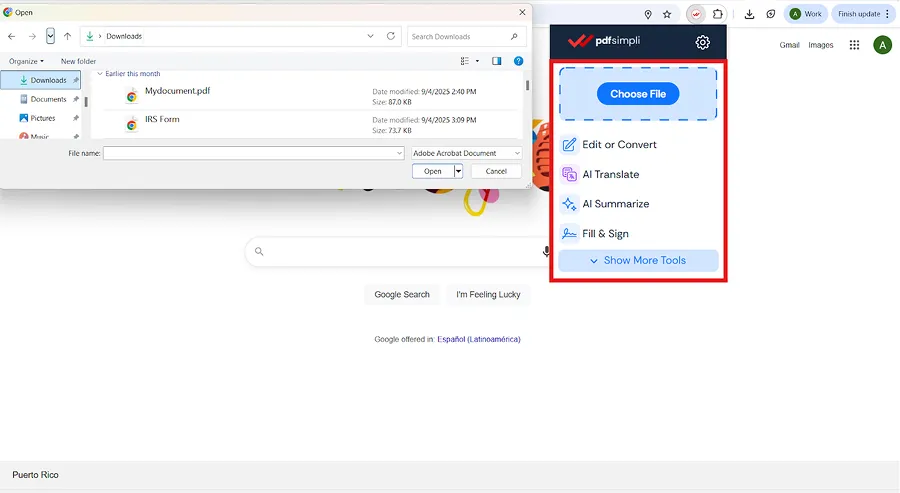
2. Upload your document: Click Choose File or simply drag and drop your PDF into the extension window

Step Image 2

You can also select from your recent files

Step Image 3

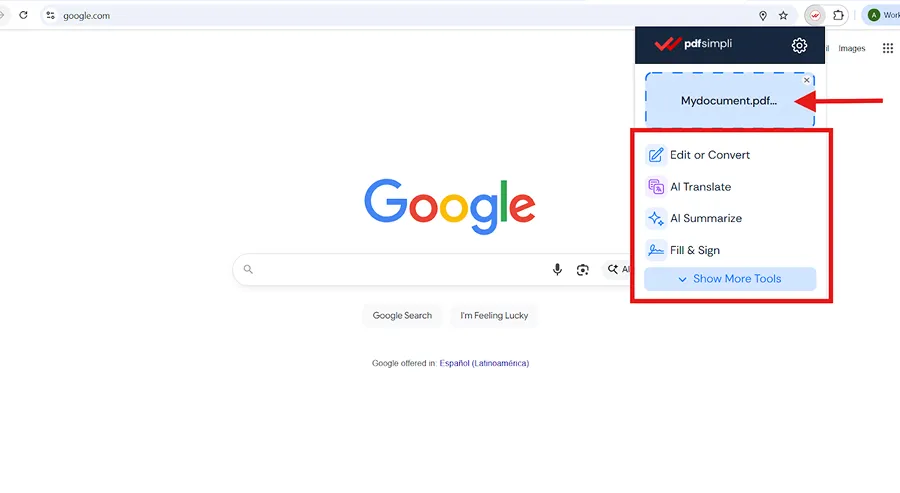
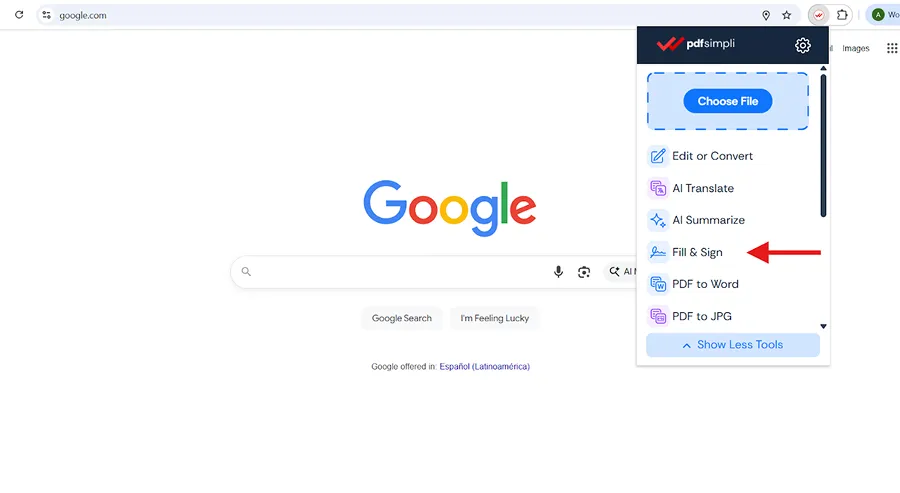
3. After uploading, choose from the PDFSimpli menu: Edit or Convert, AI Translate, AI Summarize, or Fill & Sign

Step Image 4

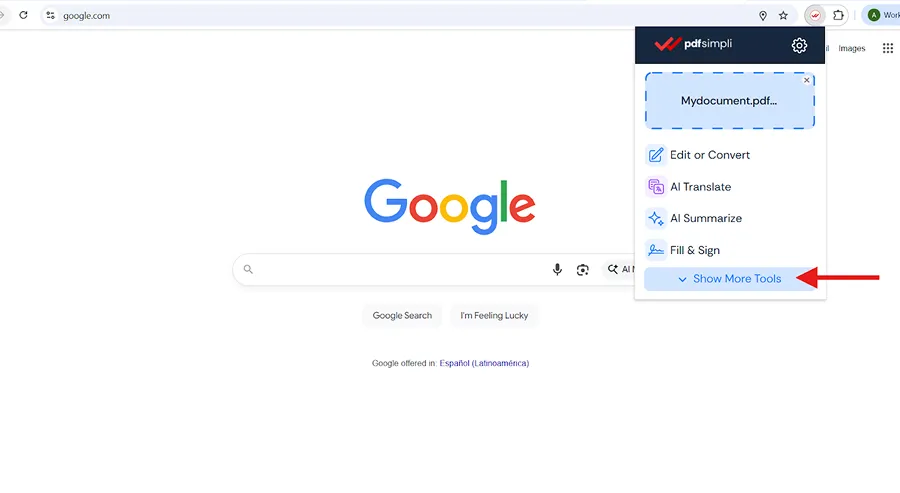
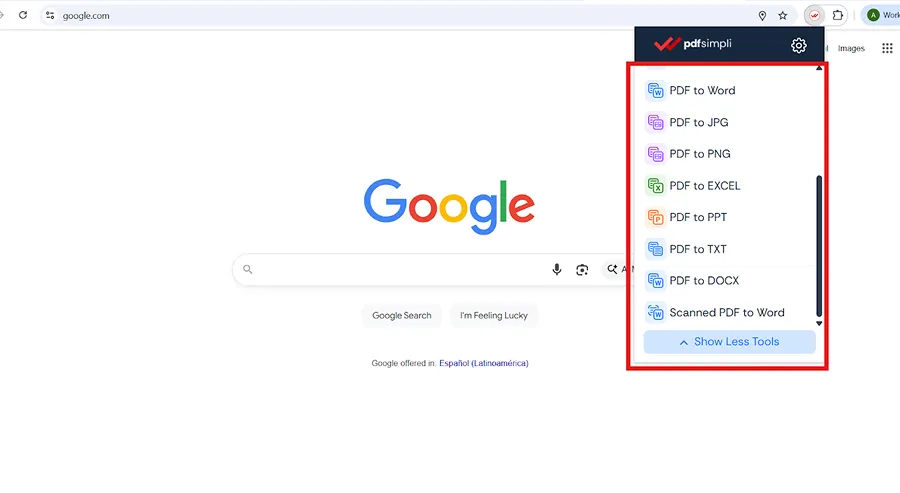
4. Click Show More Tools to reveal additional tools available in the extension
Step Image 5
Step Image 6

Edit or Convert from the PDFSimpli Chrome Extension

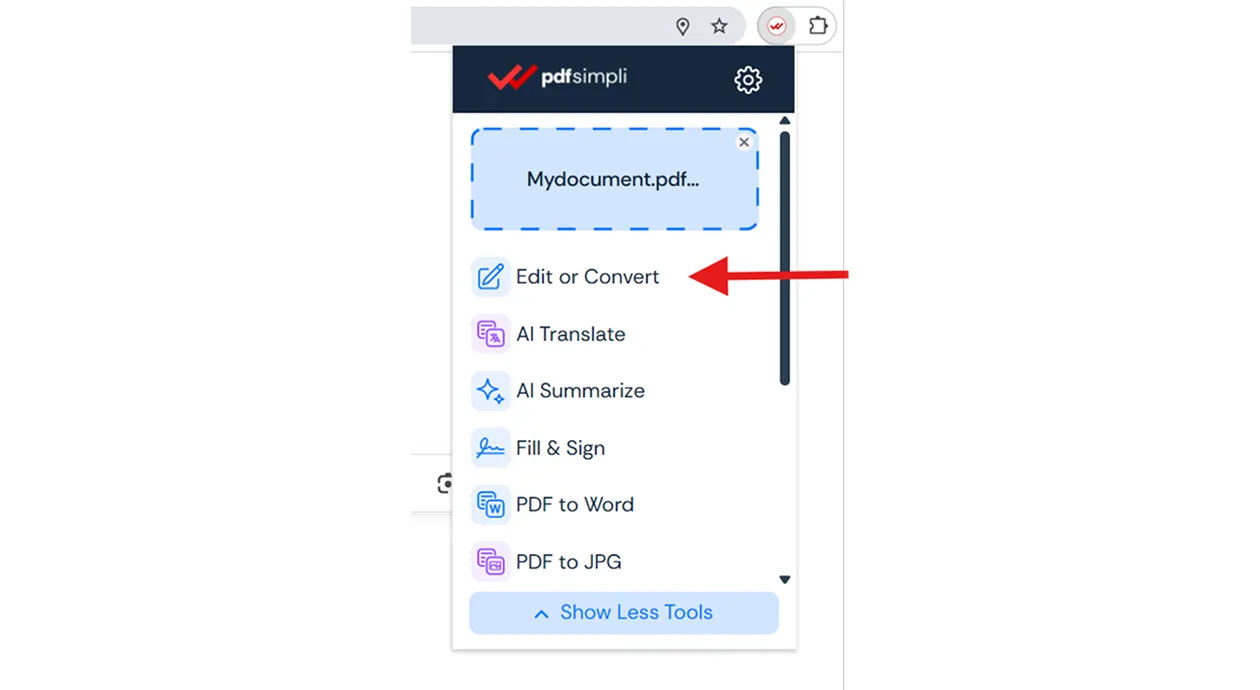
1. Click Edit or Convert

Step Image 1

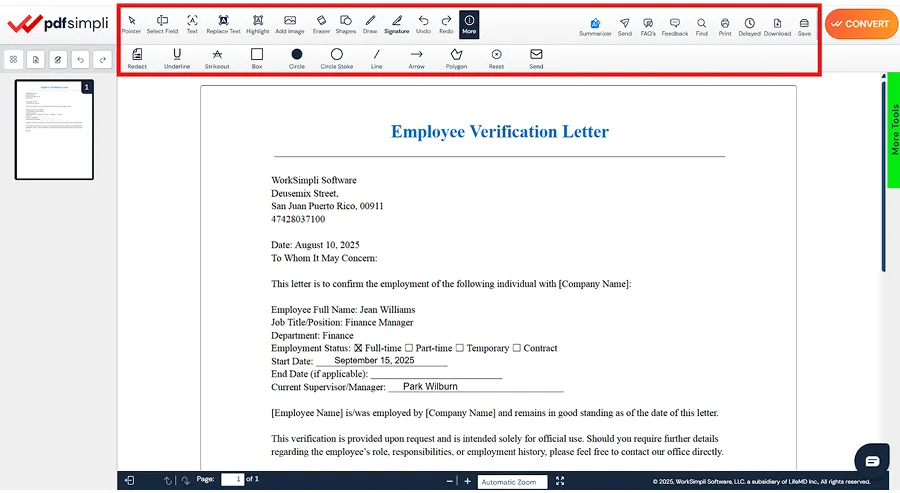
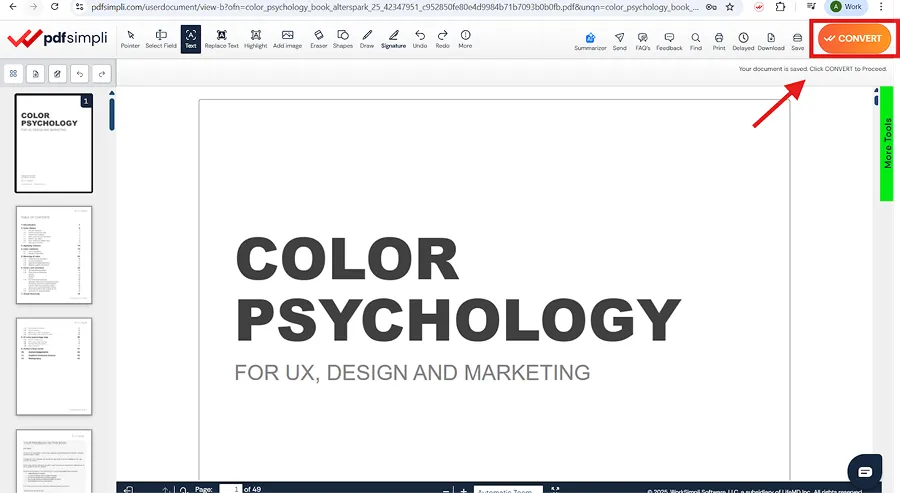
2. You will be redirected to the PDFSimpli Editor, where you can edit your document using the toolbar or convert it into another format

Step Image 2

3. Once you have your document ready, click on Convert to download the document

Step Image 3

Translate a PDF with AI

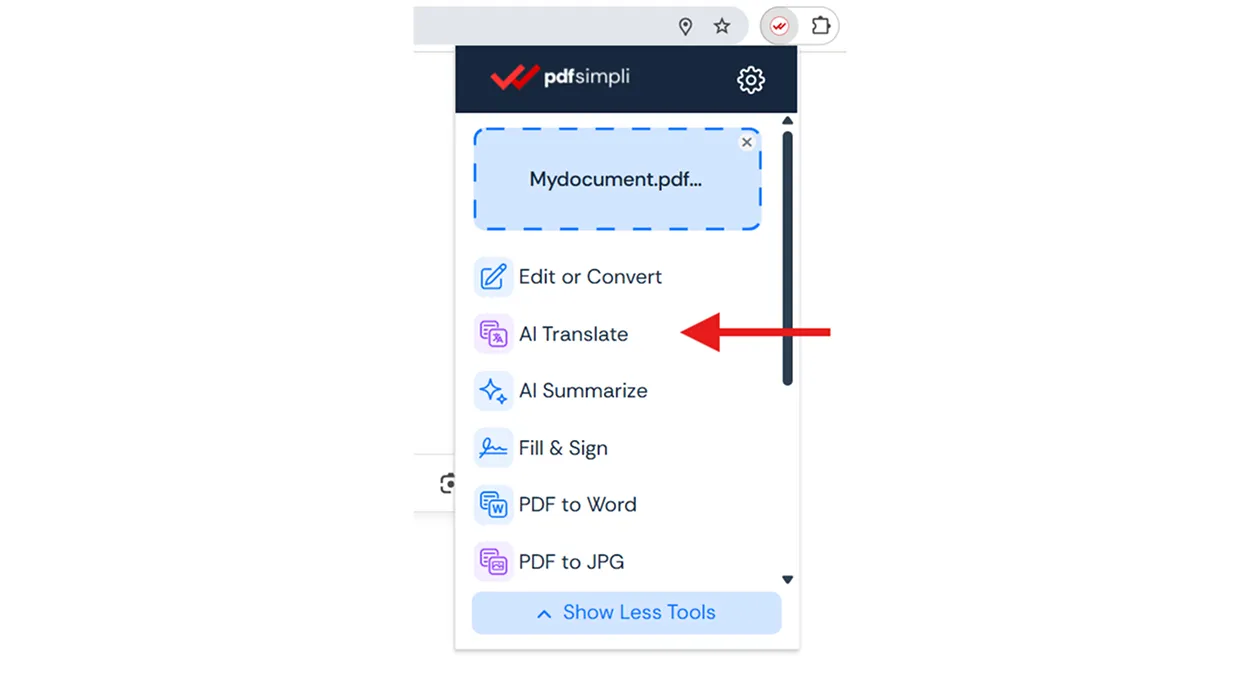
1. Upload your document and click AI Translate

Step Image 1

2. You will be redirected to the PDFSimpli editor, where you will click on Translate

Step Image 2

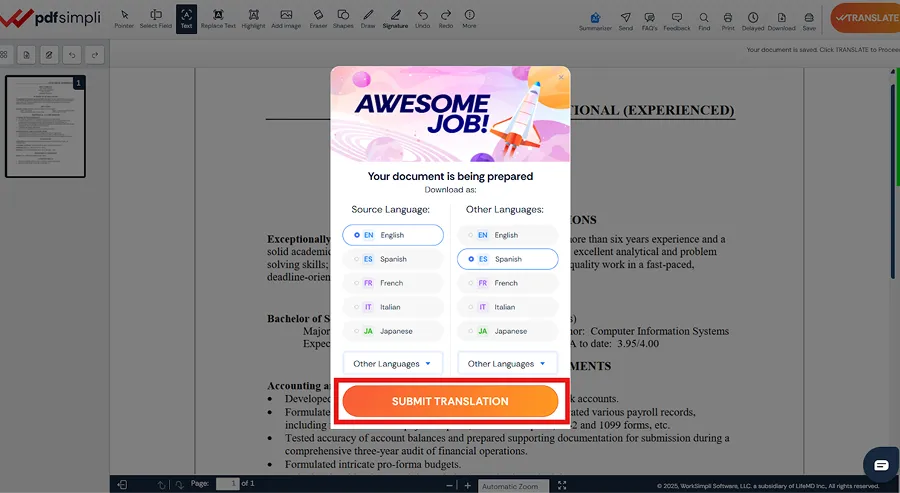
3. Select your preferred language.

Step Image 3

4. Click Submit Translation to translate your document

Step Image 4

Summarize a Document with AI

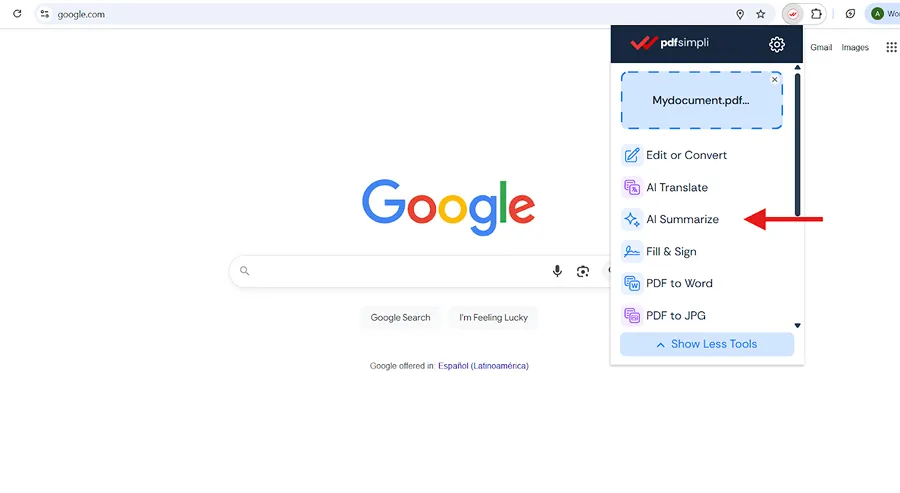
1. Upload your document and click AI Summarize to generate a summary of your document

Step Image 1

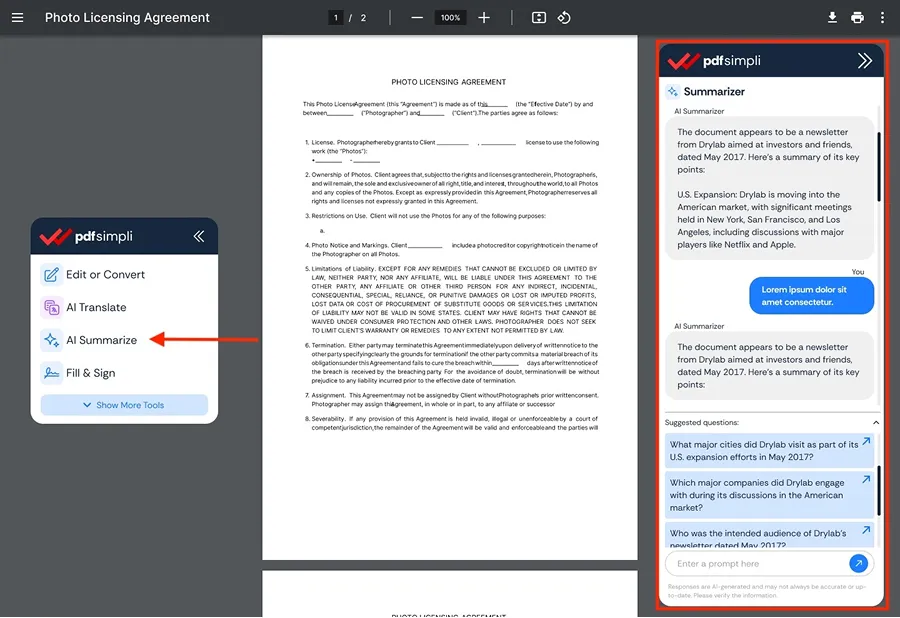
2. You will be redirected to the editor, where the AI Summarizer chat window on the right displays a concise overview of the document’s key points. Choose one of the suggested questions to get the information you need.

Step Image 2

Sign a Document with Fill & Sign

1. Upload your document and click Fill & Sign

Step Image 1

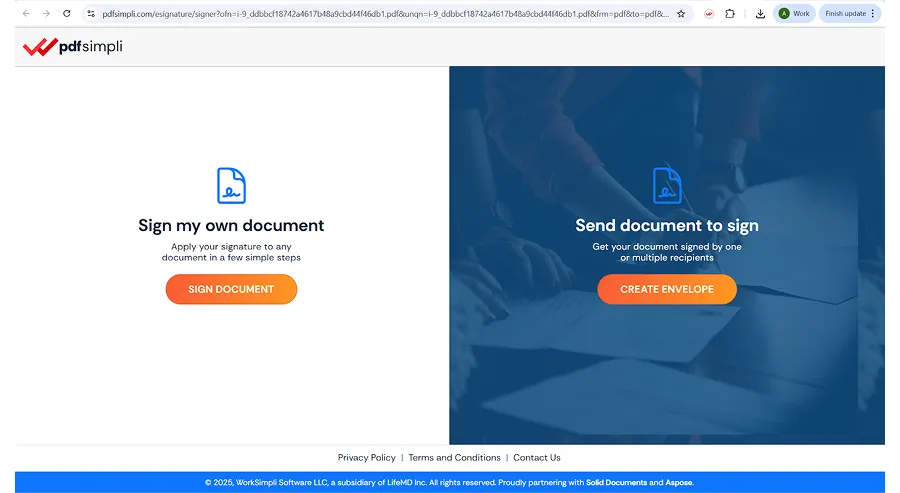
2. You will be prompted to ‘Sign my own document’ or ‘Send document to sign’

Step Image 2

3. If you would like to sign your own document click on “sign document” and enter in your vital information and click Continue

Step Image 3

4. Click on the signature field then drag and drop fields from the left panel onto the document and once completed click Finish to download the document

Step Image 4

Open from Google Search Result

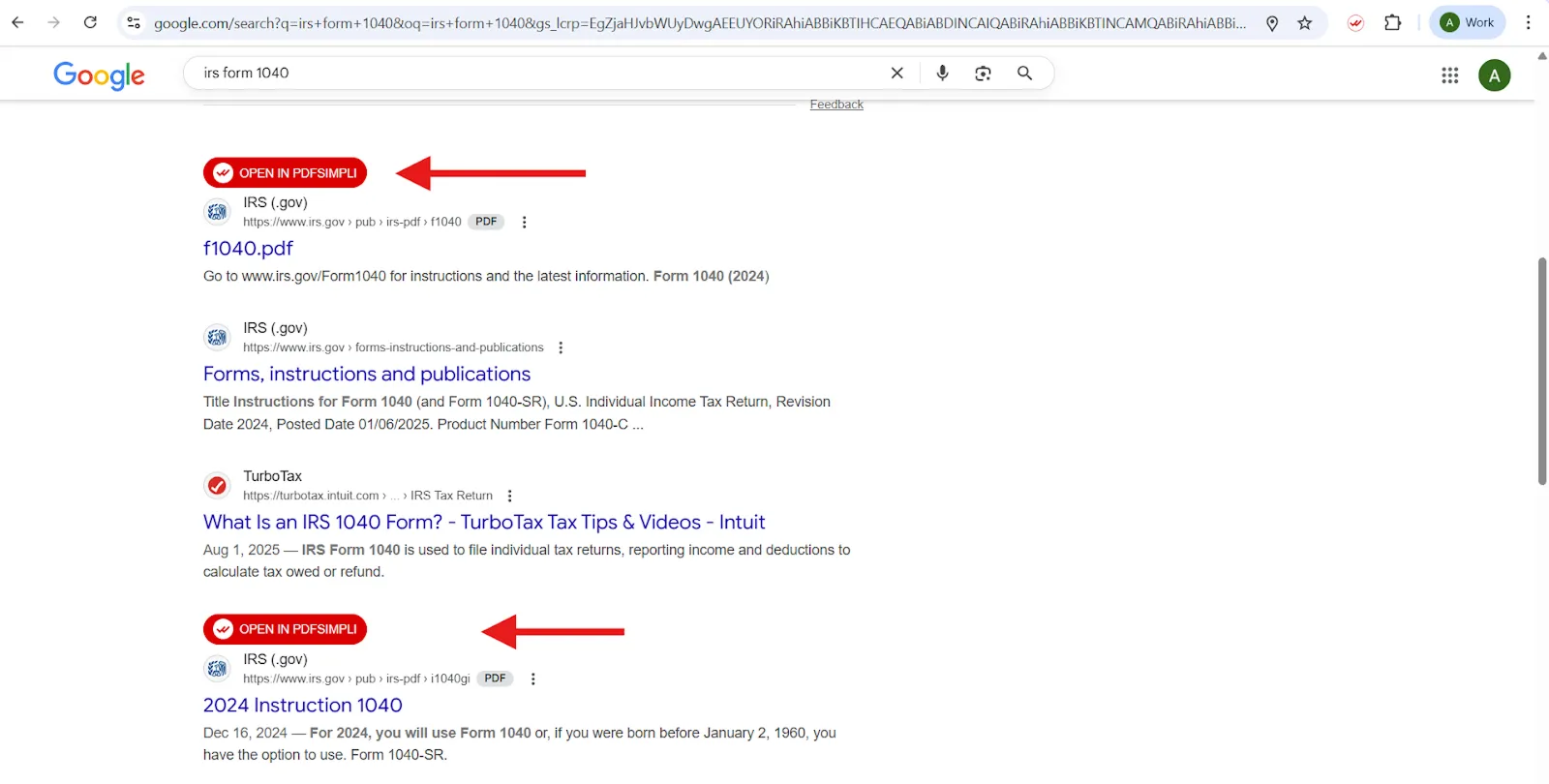
When you search on Google and a result contains a PDF, a PDFSimpli “Open in PDFSimpli” button will appear above the link.

1. Click the icon to instantly open the file in PDFSimpli

Step Image 1

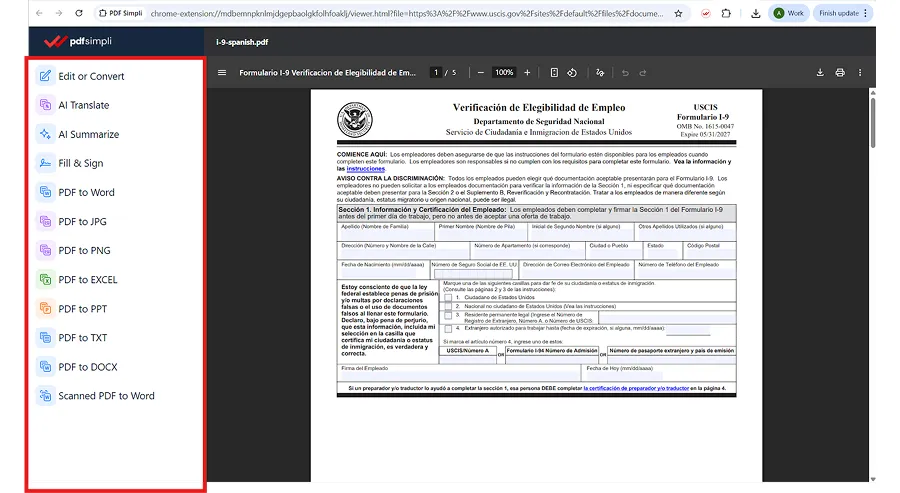
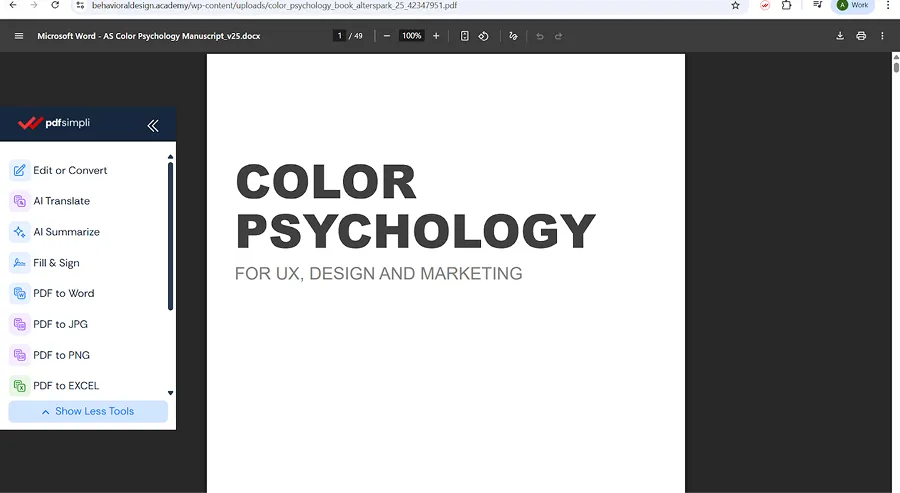
2. A preview window will show the document along with available tools—Edit or Convert, AI Translate, AI Summarizer, Fill & Sign and others—choose what you’d like to do

Step Image 2

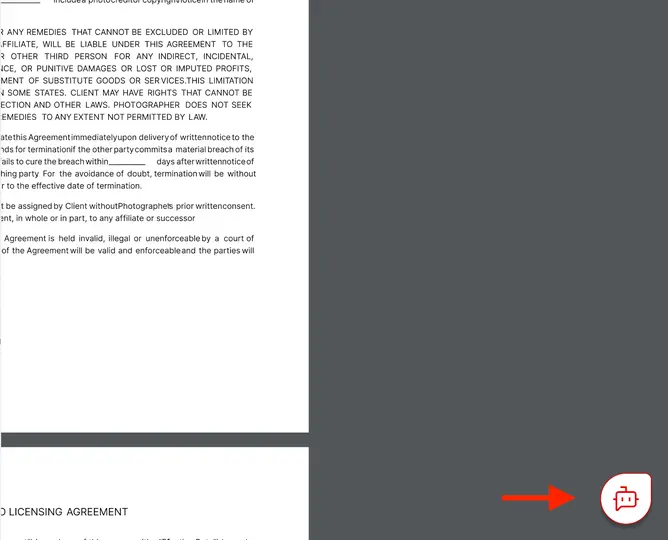
3. Click AI Summarizer from the PDF viewer to open a panel on the right, and there you can view an automatic summary of the document and ask questions to get the information you need

Step Image 3

4. For other tools, the file will open in the editor, ready for you to begin working on it

Open from Gmail

When you receive an email with a PDF attachment, a PDFSimpli “Edit in PDFSimpli” button will appear in the file preview.

1. Click the button to open the PDF directly in PDFSimpli

Step Image 1

2. A preview window will show the document along with available tools—Edit or Convert, AI Translate, AI Summarizer, Fill & Sign and others—choose what you’d like to do

Step Image 2

3. The file will then open in the editor, ready for you to work on

Manage Settings

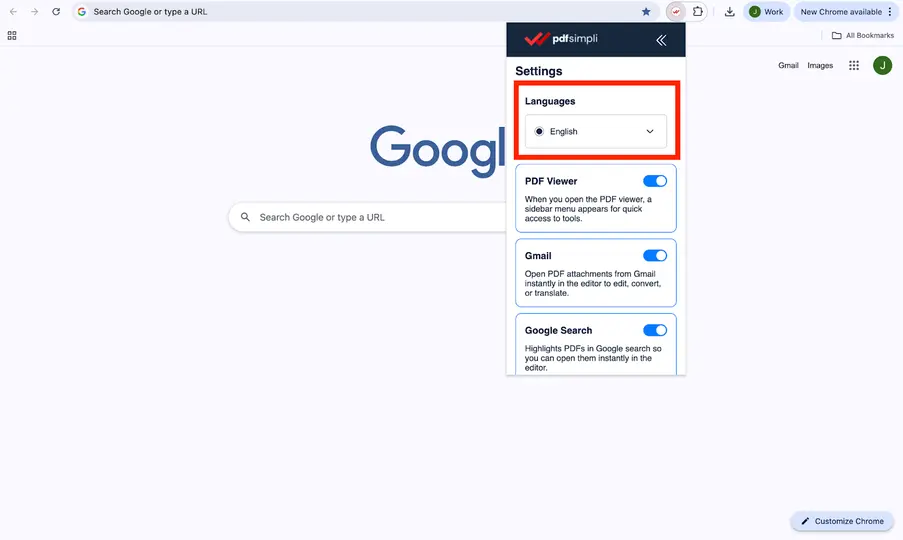
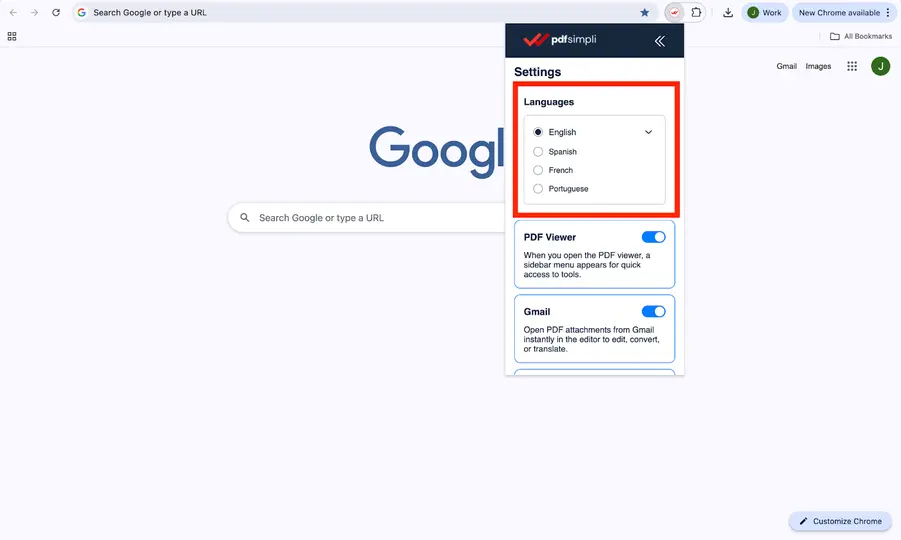
You can manage the settings by enabling or disabling these features in the settings section by toggling the switch.

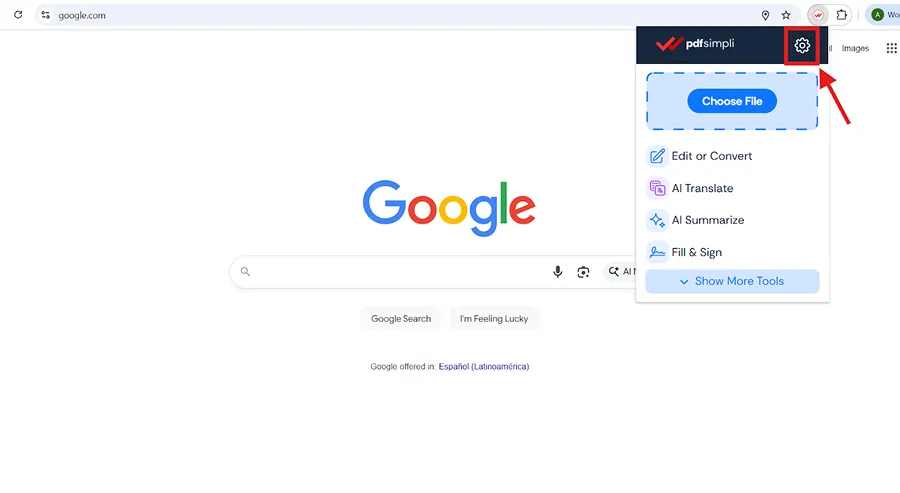
1. Open settings by clicking the “Settings” icon at the top right corner

Step Image 1

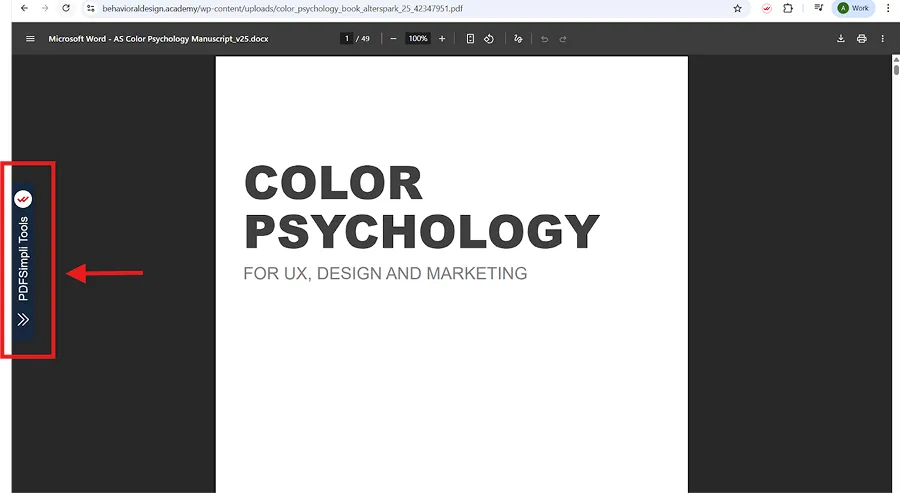
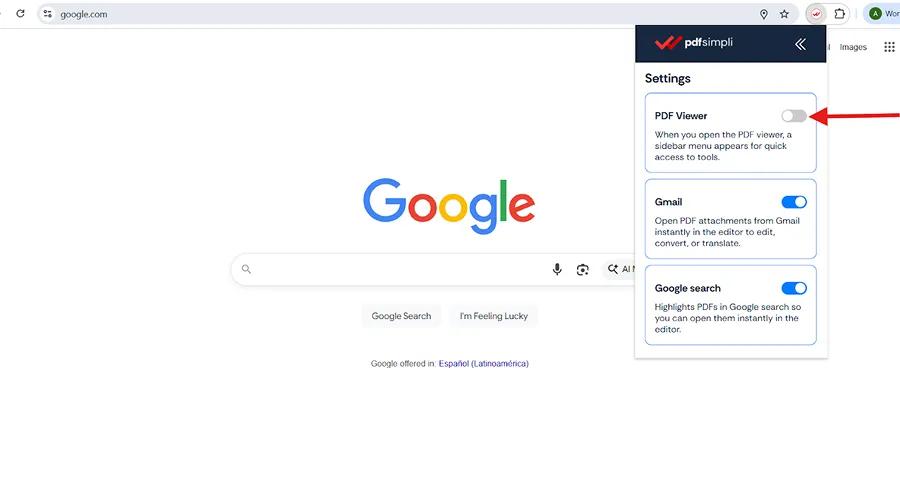
2. PDF Viewer – Show or hide the PDFSimpli sidebar when opening PDFs

Step Image 2

3. Gmail – Show or hide the option to open PDF attachments from Gmail directly in the editor

Step Image 3

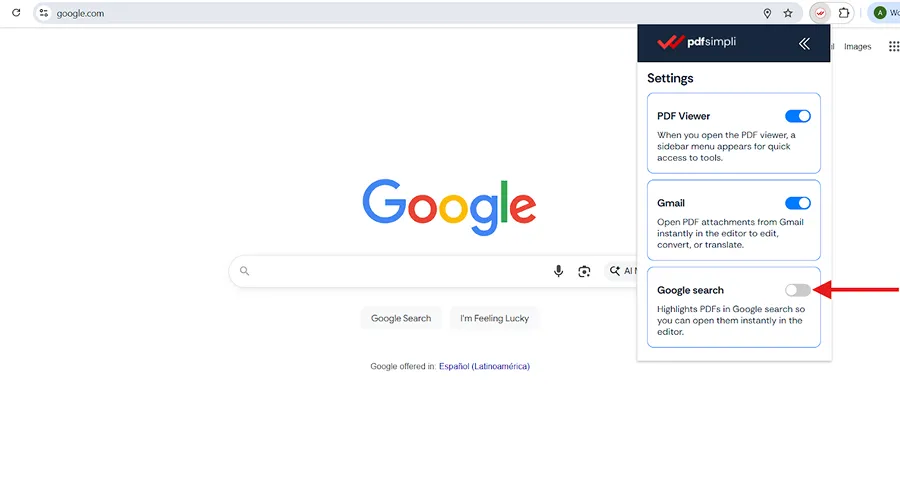
4. Google Search – Show or hide PDF highlights in search results for quick editing

Step Image 4

Disable PDFSimpli Chrome Extension

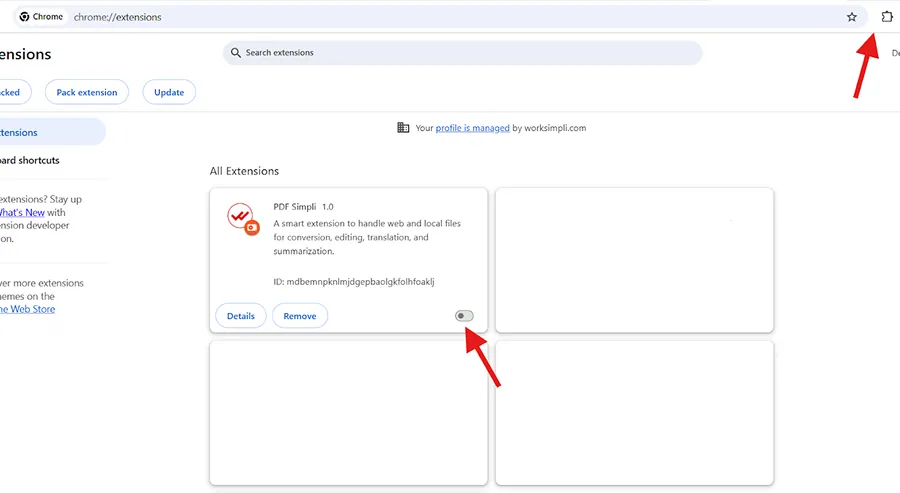
1. At the bottom of the Extensions menu, click Manage extensions and make sure “My extensions” is highlighted

Step Image 1

2. Locate the PDFSimpli Chrome Extension and click on the toggle switch to disable it

Step Image 2

3. Once it is disabled, you will notice that its icon no longer appears in the upper right corner of your browser

Step Image 3

How to uninstall the PDFSimpli Chrome Extension

1. Click Remove to delete the extension

Step Image 1
Step Image 2
Add to your favorite browser
Convert PDF to Word online | Free PDF browser extension | Edit and sign documents online.

Select Language

© 2025 , WorkSimpli Software, LLC. A subsidiary of LifeMD Inc., All rights reserved.